

In this Lidarr Configuring Ubuntu tutorial. Let’s set Lidarr with the program NZBGet to automatically download the latest desired music from the newsgroups.
Update Lidarr Check
Controleer eerst of er een update beschikbaar is voor Lidarr. Het is belangrijk om altijd te werken met de meest recente versie, omdat deze vaak verbeteringen, nieuwe functies en beveiligingspatches bevat.

Open System. Then go to Status.

Press on the icon with the two arrows.

Then, press Install latest.
And then wait a while. Tot de update klaar.
You may have to press restart at the top right. Lidarr should do that itself but that didn’t work well for me.
Rename Lidarr
It’s important to enable renaming. Otherwise, downloaded files may have strange or inconsistent names, making them difficult to identify. This can vary from uploader to uploader, as different uploaders use different naming conventions. Enabling renaming ensures that filenames remain consistent and understandable.
Open Settings. Then select Media management.

Check Rename Tracks.

Select the question mark.
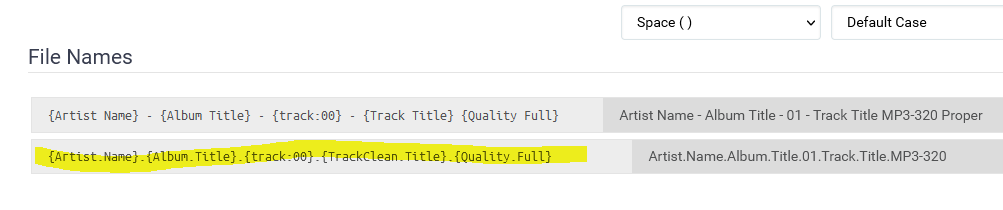
Select the second option. And then select Multi Disc Track Format. En kies dan ook voor de tweede optie.
Check the Ignore Deleted Tracks checkbox.
Add Liarr indexers
We moeten indexers toevoegen in Lidarr, zodat de applicatie weet waar de muziek vandaan gedownload kan worden. Indexers fungeren als zoekmachines die de beschikbare NZB-bestanden indexeren en aanbieden. Deze NZB-bestanden bevatten de metadata van de gewenste muziek en worden gebruikt om de specifieke bestanden te vinden. Door indexers in Lidarr te configureren, geef je het programma toegang tot verschillende bronnen waar muziekbestanden beschikbaar zijn, zoals nieuwsgroepen. Vervolgens gebruikt Lidarr deze NZB-bestanden om de gewenste muziek te downloaden, zodat je altijd de laatste albums en tracks kunt verkrijgen. Het toevoegen van betrouwbare indexers is een cruciale stap in het proces om Lidarr optimaal te laten functioneren.
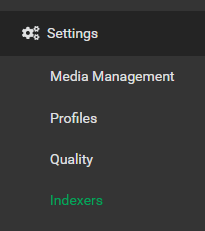
Go to Settings. And then Indexers.

Click on the Plus icon.
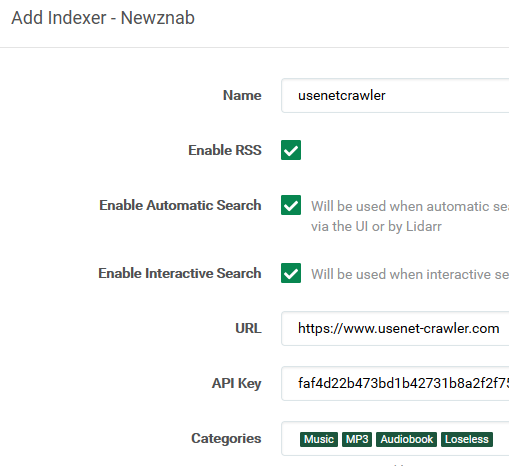
Enter the details of your Newznab provider here. If you don’t have these. See the newznab servers page. The more Newznab servers you add. The greater the chance that your desired music will be found in the newsgroups.

The api key of the Newznab server. You can often find it under your account. And then site api.

Click Save. And then Test.
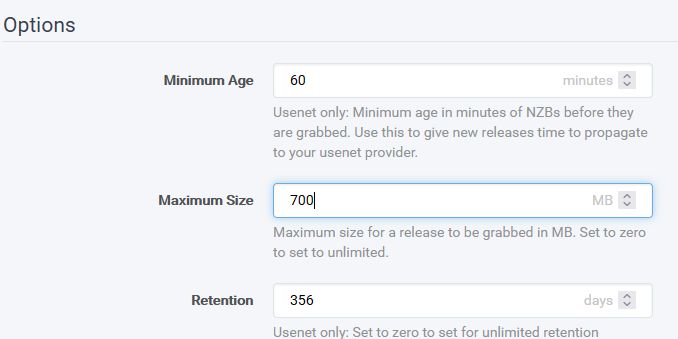
Please include the above information. This increases the chance that a download is good. But of course it also has to do with your Newznab provider. These are not always good.
You can often find the Retenetion on the website of your Usenet provider. Nowadays this is a few years, for a paid Usenet provider. With free providers, this is often only a few days.

Now click Save changes.
Lidarr configureren Ubuntu NZBget
Go to the Download client tab.
Select the Plus icon.

Now select NZBGet.
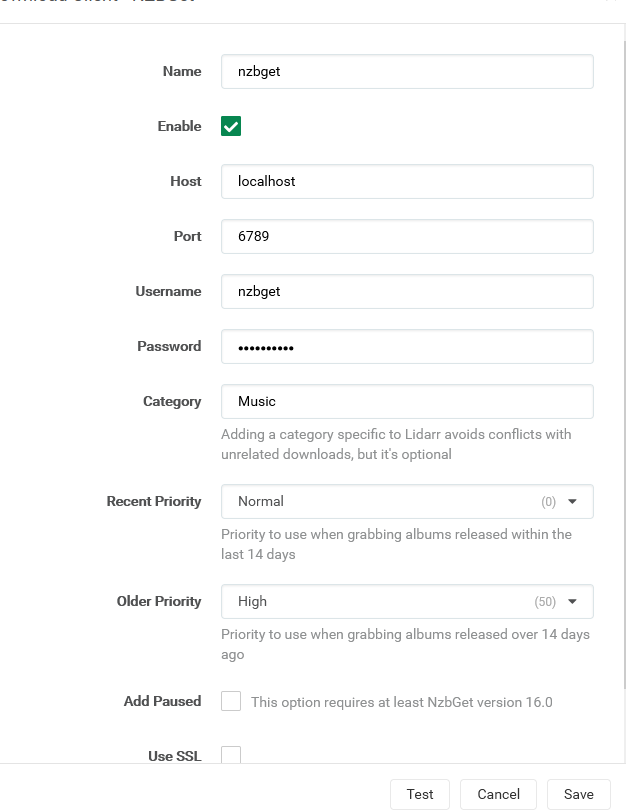
Enter your details from NZBGet. Press on Test. And if the test went well then click Save.
By default, the NZBget username and password is nzbget. I do recommend adjusting this if you haven’t already done so.
If the test did not go well. then check the username and password. Usually, the password is wrong. Think of spaces, for example.
Kodi database updaten Lidarr
If you use Kodi, or another system to manage your music. Dan moet je hiervan de bibliotheek updaten. Below I explain how you do that for Kodi. But you can also use it for Plex or any other system.
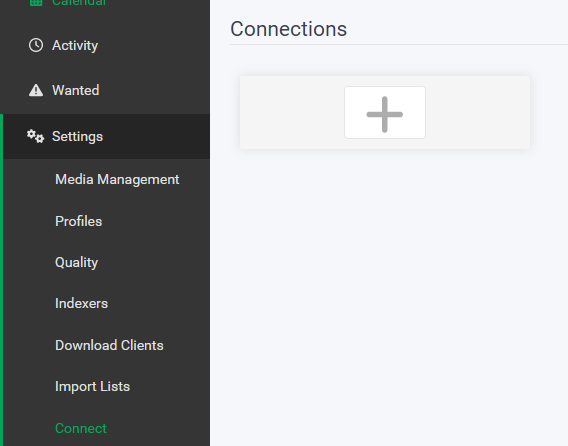
Go to Settings. Then select Connect. Click on the Plus sign.
Select Kodi.

All checkmarks under Notification Triggers. Ensure that you see a notification in Kodi. These checkmarks are not necessary to update the library.

Scroll further down. And here you will see the checkbox Update Library. This one is very important! Otherwise, Kodi will not see the new release. You can set the rest of the checkmarks to your own taste.

Go to Settings and then Metadata.
Click Kodi. And check Enable.
Quality settings
Here you can set the minimum size for your music files. This helps ensure you only download files of a certain quality and prevents unwanted, small, or incomplete files from being downloaded.

I would set a minimum size of 1mb. And for FLAC 3MB.
This was the tutorial to how to configure Lidarr in Ubuntu with NZBGet. Are you still running into something? Then see the Lidarr FAQ page, or leave a message.
Lidarr tutorial Ubuntu
- Lidarr tutorial.
- Install Lidarr Ubuntu.
- Configure Lidarr on Ubuntu with NZBget.
- Ubuntu Lidarr Music Download.



Be the first to comment