

In this tutorial download VLC player subtitles for Windows. I will explain to you how to download foreign or English subtitles for your film or TV series.
Install VLC player Windows
We need to be the first to install VLC. If you haven’t already.
You can download the latest version of VLC player here http://www.videolan.org/vlc/download-windows.nl.html .
Then start the Setup.exe.

Selecteer nu English. And then click Ok.

Now press Next.

Click Nextagain.

Now again Next.
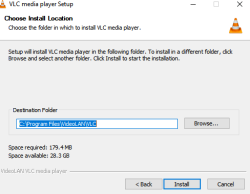
Now click Install.
Now wait a minute.
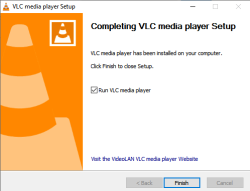
When the installation is complete, click Finish.
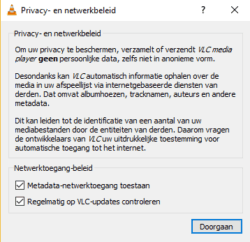
VLC will now start.
You will now receive the above notification.
Then click Continue.
Download and Install Subtitle Plugin VLC Option 1
Before we can download a subtitle file with VLC. First we need to install the subtitle plugin vlc. I am now going to explain to you how to install this subtitle plugin in VLC.

Go to Tools and then Plugins and extensions.

Click here onAll. Type vlsubabove. Now double click on VlSub.
Now the word Installwill appear. Now click Install.
Then click Close.
The subtitle VLC plugin is now installed.
Vlsub Download Latest Version for VLC
This may not be the latest version. You can download it here: https://github.com/opensubtitles/vlsub-opensubtitles-com/releases/ . Download the latest vlsub.lau file here.
Then place this file in C:\Program Files\VideoLAN\VLC\lua\extensions and restart VLC.
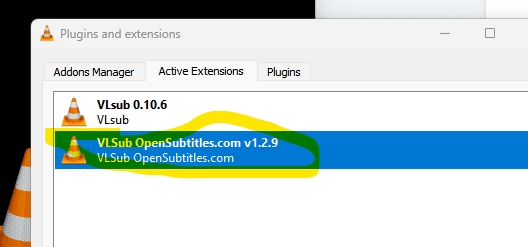
Check the version number in VLC now. You do this under Tools, then Plugins and Extensions.
Download and Install Subtitle Plugin VLC Option 2
It is possible that you use option 1. That you don’t get the latest version for VlSub. If you don’t have the latest version of VSub. Then the subtitles plugin of VLC will most likely not work properly.

Download here https://github.com/exebetche/vlsub The vlsub.lua file. Click on this with your right mouse. Now click on vlsub vlsub.lua, and choose save link as…
Place the vlsub.lua file in C:\Program Files (x86)\VideoLAN\VLC\lua\extensions .
The lua or extensions folder may not exist. If that is the case then you have to create this folder yourself.
Now restart VLC.
The plugin is now installed.
VLC BetterVLSub Option 3
It is also possible to download the subtitles using the following plugin, BetterVLSub. You can download it here: https://addons.videolan.org/p/2338834/ Place the file in C:\Program Files\VideoLAN\VLC\lua\extensions . Restart VLC.
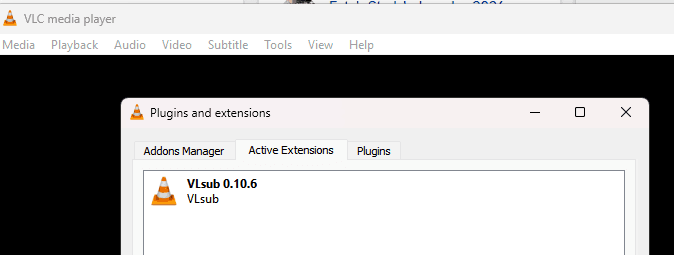
You should now see this program listed under Tools, then Plugins and Extensions, and then Active Extensions.
Then follow the section on downloading subtitles.
Download subtitles VLC
Open a movie. With VLC player. What you want to download the subtitles for.

Now go to View. And then choose VLsub.

The above screen appears. At Subtitles Launge now select your preferred subtitle language. If you choose Search by Hash. Then there a greater chance that the subtitles will in sync But the chance that you will find a subtitle is also a lot smaller.
If this does not work, choose Search by Name.
Once a subtitle is found, select it.
Now click on Download selection. The subtitles will now be downloaded.
You can now watch the film or series with subtitles.
If you do not find the desired subtitle with the above subtitle tutorial. Then see the following pages download subtitle software and download subtitles.
This was the tutorial VLC player subtitle download Windows.




Be the first to comment